

Key takeaways
- Choose 24 inches for a compact desk and 27 inches for comfortable split-screen work.
- Prefer 4K-class resolution on 24- to 27-inch screens when text clarity matters.
- Buy 16GB RAM and a 512GB SSD as the practical baseline for long-term use.
- Choose Apple M4, Core Ultra 5/7, or Ryzen 5/7 for demanding multitasking.
- Confirm the webcam resolution, privacy shutter, microphone features, and camera placement.
- Count the USB-A, USB-C, Ethernet, audio, and display ports before ordering.
- Assume that memory cannot be upgraded unless the manufacturer explicitly documents it.
- Measure the desk depth, not only the available width.
The best all-in-one computers for most homes and offices are the Apple iMac 24-inch with M4 for a polished, quiet everyday setup, the HP OmniStudio X 27 for a larger Windows workstation, and a configurable Dell or Lenovo 24-inch all-in-one for a lower-cost family computer.
Our top picks


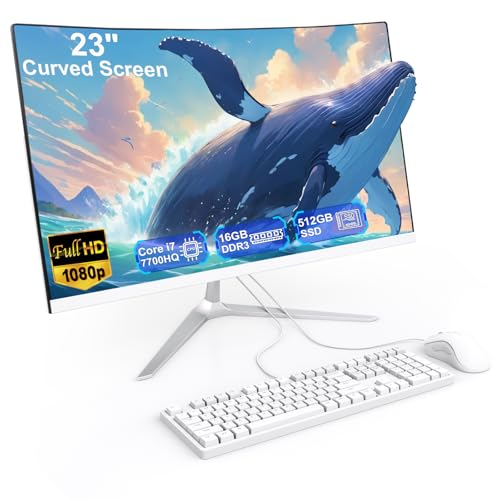
As an Amazon Associate we earn from qualifying purchases at no extra cost to you. Ratings are shown as listed on Amazon.
Best all-in-one computers by situation
| Best for | Recommended type or model | Why it fits | Typical market range |
|---|---|---|---|
| Everyday home use and creative apps | Apple iMac 24-inch with M4 | Sharp 4.5K display, quiet operation, compact footprint, strong efficiency | About $1,300–$2,000 |
| Large-screen Windows work | HP OmniStudio X 27 | 27-inch 4K-class display, modern Intel Core Ultra options, useful webcam features | About $1,000–$1,800 |
| Budget family computing | 24-inch Windows all-in-one with Core i5 or Ryzen 5 | Good value for web browsing, documents, video calls, and schoolwork | About $600–$1,000 |
| Design-conscious Windows desk | Lenovo Yoga AIO 9i | Large high-resolution display, premium construction, and integrated wireless charging on some configurations | About $1,500–$2,500 |
| Mac-specific software and minimal setup | Apple iMac 24-inch with M4, 16GB or more | Simple macOS experience and lower power use than many desktop towers | About $1,500–$2,000 for a practical configuration |
What matters most when choosing an all-in-one
Screen size and resolution
A 24-inch screen is usually the best choice for a small desk. It provides enough room for documents, email, and a browser without making the computer dominate the room. A 27-inch model is more comfortable for spreadsheets, photo editing, and split-screen work. Some 31.5-inch models are available, but they need a deeper desk and can make text look less crisp if the resolution remains only 1080p.
For a 24-inch display, 4K or Apple’s 4.5K resolution produces noticeably sharper text than Full HD. On a 27-inch computer, aim for 2560×1440 at minimum; 3840×2160 is preferable when reading small text, editing photos, or sitting close to the screen. Check the panel type as well: IPS displays generally offer better viewing angles than inexpensive TN panels.
Processor performance
Processor choice should follow the workload rather than the model name. An entry-level Intel Core 3, Core i3, or AMD Ryzen 3 is adequate for browsing and documents, but it leaves less headroom for years of multitasking. Intel Core i5, Core Ultra 5, and AMD Ryzen 5 are the sensible middle ground for a household or office computer.
Choose a Core Ultra 7, Ryzen 7, or Apple M4 configuration when you regularly edit photos, work with large spreadsheets, compile software, or keep many demanding applications open. These chips are not automatically gaming processors: most all-in-ones use integrated graphics, so they are better suited to casual games than modern graphics-intensive titles.
RAM and storage
Buy at least 16GB of RAM if the computer is expected to last several years. Eight gigabytes can handle light use, but browser tabs, video calls, cloud synchronization, and office applications can consume it quickly. For professional creative work or heavy multitasking, 24GB or 32GB is more comfortable.
A 512GB solid-state drive is the practical starting point. A 256GB drive may fill rapidly after installing applications and storing photos. Choose 1TB if the computer will hold a substantial photo library, downloaded video, or local project files. SSDs make startup and application loading much faster than older mechanical hard drives.
Ports and wireless connections
Port selection is one of the most important differences between all-in-ones. Look for at least two USB-A ports if you still use older printers, keyboards, or storage devices, plus USB-C for newer accessories. A headphone jack, HDMI input or output, and an Ethernet port can also be valuable.
The iMac has a clean design but relies heavily on USB-C or Thunderbolt connections, depending on configuration. A Windows all-in-one often provides a broader selection, although ports may be positioned on the rear where they are awkward to reach. Wi-Fi 6E or Wi-Fi 7 and Bluetooth 5.3 or newer are useful for modern networks and wireless accessories, but they do not replace Ethernet when consistent low-latency performance matters.
Webcam and microphones
Video calls are now a core desktop task, so do not judge the webcam by resolution alone. A 1080p camera is preferable to a basic 720p unit, while automatic framing, background effects, light correction, and a physical privacy shutter can matter more in daily use.
Apple’s recent iMac includes a 12MP Center Stage camera, which is unusually capable for an all-in-one. HP OmniStudio X models emphasize camera and conferencing features, including software-based framing and lighting tools on applicable configurations. Budget models may still have a 720p webcam; that is usable, but expect softer images in indoor light. A separate USB webcam remains the easiest upgrade if calls are important.
Head-to-head: iMac 24 versus a 27-inch Windows all-in-one
| Feature | Apple iMac 24-inch with M4 | Typical 27-inch Windows all-in-one |
|---|---|---|
| Display | 24-inch, 4480×2520, 4.5K-class | 27-inch, commonly 1920×1080, 2560×1440, or 3840×2160 |
| Memory | Commonly 16GB, 24GB, or 32GB unified memory | Commonly 8GB, 16GB, or 32GB DDR5 |
| Storage | Typically 256GB, 512GB, or 1TB SSD | Typically 512GB or 1TB SSD |
| Webcam | 12MP Center Stage camera | Usually 1080p; features vary widely |
| Approximate width | About 21.5 inches | About 24–25 inches |
| Upgradeability | Memory and storage are not user-upgradable | Some models allow RAM or storage replacement; verify the exact model |
| Best reason to buy | Sharp display and cohesive, quiet experience | Larger workspace, Windows compatibility, and potentially easier servicing |
The iMac is the stronger choice when screen sharpness, low clutter, and macOS are priorities. A 27-inch Windows model wins when you need more physical workspace, Windows-only applications, more conventional ports, or the possibility of replacing memory and storage later. Neither is ideal for serious gaming unless the computer includes a discrete graphics processor, which is uncommon in thin all-in-one designs.
Desk footprint and setup costs
An all-in-one saves space because the computer is built into the display, but the stand still requires a stable area roughly 22–25 inches wide and 8–10 inches deep. Measure the desk with the keyboard and mouse in place, not just the screen. A 27-inch model can feel cramped on a shallow 18-inch desk even when its width is acceptable.
There is also a useful cost calculation. Suppose a 24-inch all-in-one costs $1,400 and is used for five years. Ignoring electricity, that is about $23 per month, or roughly $0.76 per day. Spending $200 more for 16GB rather than 8GB RAM and a 512GB rather than 256GB SSD can be cheaper than replacing an otherwise serviceable computer early because it has become cramped.
Upgradeability and ownership realities
All-in-ones trade serviceability for neatness. In many thin models, the processor, graphics hardware, and memory are soldered to the main board. Storage may also be difficult or impossible to replace. Before buying, select the RAM and SSD capacity you expect to need for the entire ownership period.
Windows models with a removable rear panel are more flexible. Some permit a technician or experienced owner to replace an M.2 SSD or add memory, while others only appear upgradeable but use soldered components. Check the manufacturer’s service manual for the exact model number rather than assuming that every computer in a product family has the same design.
The first parts to cause trouble are usually not the screen or processor. Dust can restrict cooling, the power adapter can fail, wireless accessories can wear out, and the SSD eventually has less free space. Keep several gigabytes available, clean vents with compressed air held upright, and avoid blocking the rear of the display. Do not spray cleaner directly onto the panel; apply a small amount to a microfiber cloth instead.
Final buying checklist
- Choose 24 inches for a compact desk and 27 inches for comfortable split-screen work.
- Prefer 4K-class resolution on 24- to 27-inch screens when text clarity matters.
- Buy 16GB RAM and a 512GB SSD as the practical baseline for long-term use.
- Choose Apple M4, Core Ultra 5/7, or Ryzen 5/7 for demanding multitasking.
- Confirm the webcam resolution, privacy shutter, microphone features, and camera placement.
- Count the USB-A, USB-C, Ethernet, audio, and display ports before ordering.
- Assume that memory cannot be upgraded unless the manufacturer explicitly documents it.
- Measure the desk depth, not only the available width.
For the broadest recommendation, the iMac 24-inch with M4 is the best all-in-one computers choice for a compact, premium home or office setup, while the HP OmniStudio X 27 or a well-configured 27-inch Dell or Lenovo model is better when Windows compatibility and a larger workspace matter more. The best value is usually a 24-inch Windows all-in-one with a Core i5, Core Ultra 5, or Ryzen 5 processor, 16GB RAM, a 512GB SSD, and a screen resolution higher than basic 1080p.

Write Your Review
No reviews yet. Be the first to share your experience!